
The transcript, beside the video
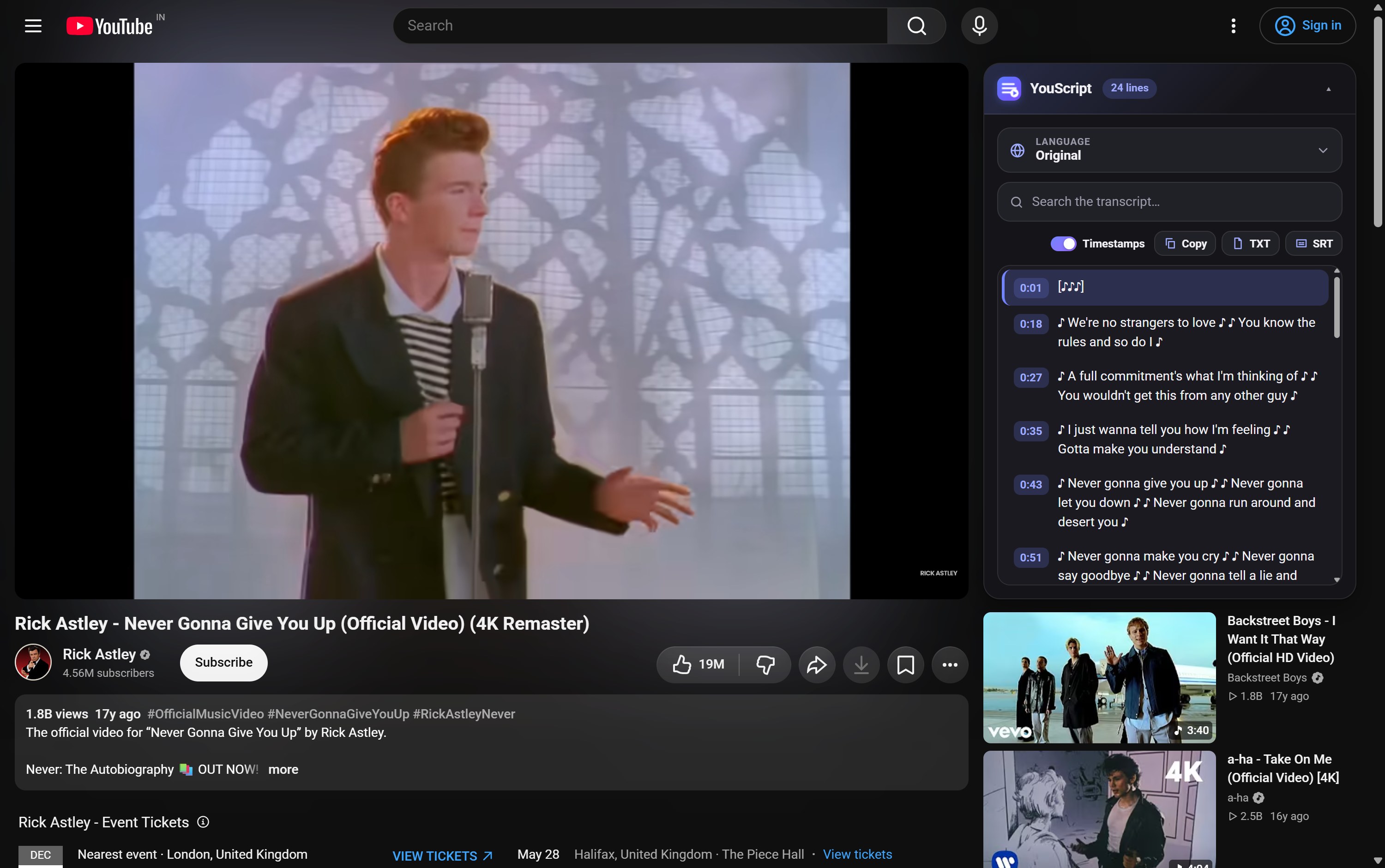
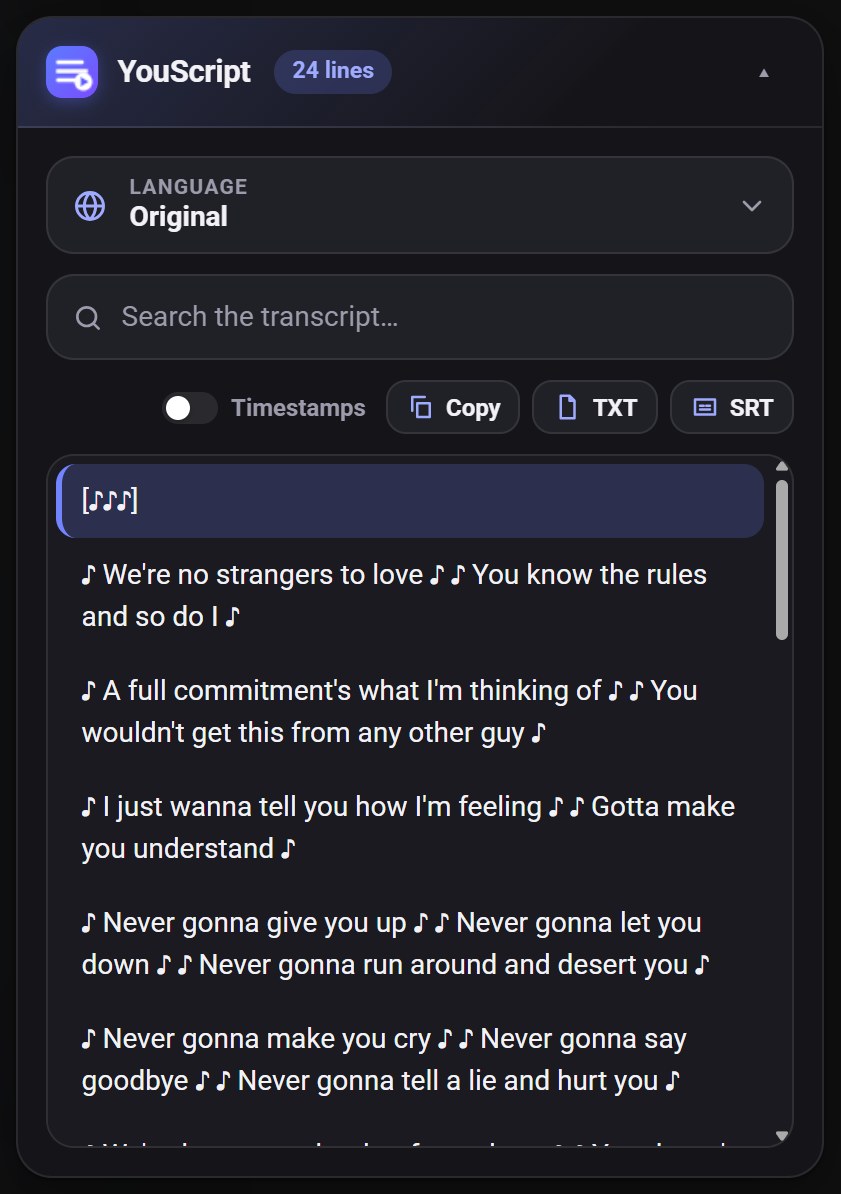
Open any YouTube video and a card at the top of the sidebar already shows the full transcript. No button to hunt for, no pop-up to open, no page to leave.
 Free · No account · No AI · 100% private
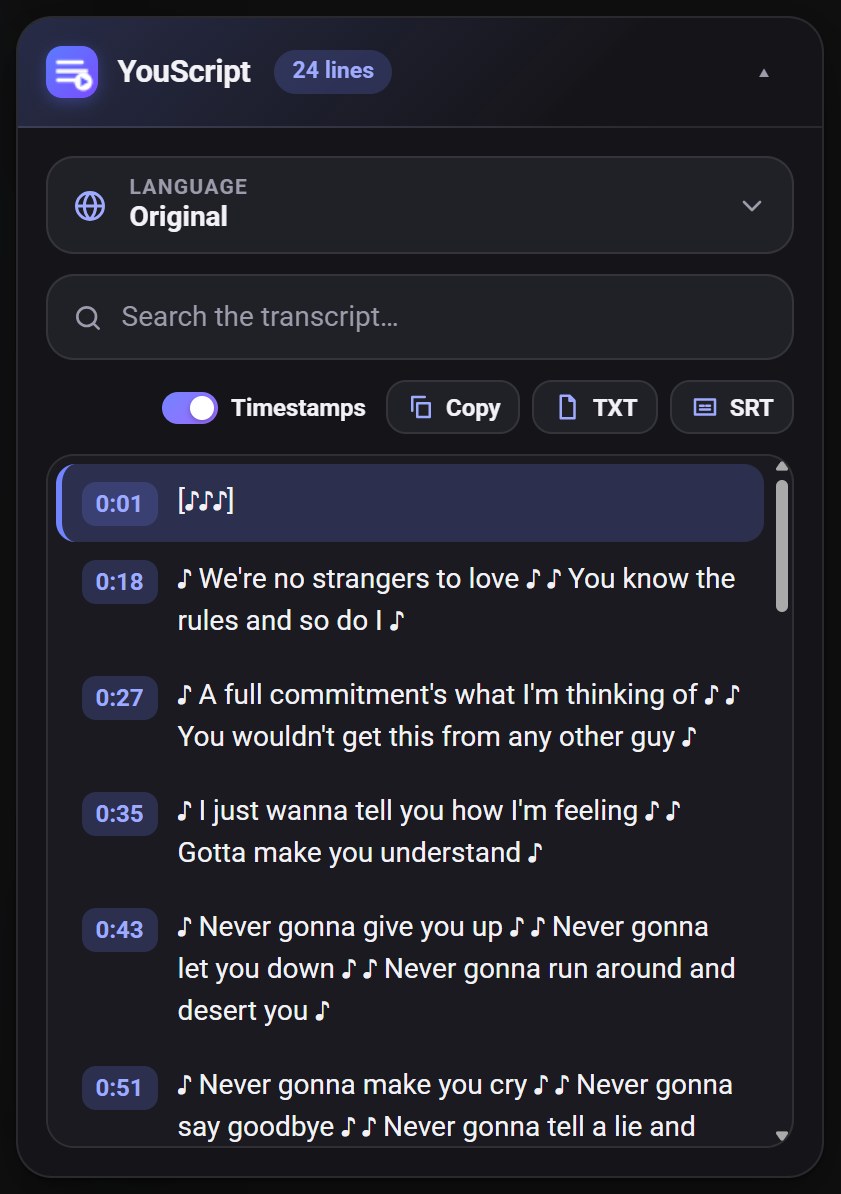
YouScript shows the full transcript right beside the video. Search it, click any line to jump there, copy it, download it, or read it in the language you want.
One click from the Chrome Web Store. There is nothing to sign up for or set up.
The YouScript card appears at the top of the sidebar and the transcript fills in by itself within a few seconds.
Search, click a line to jump, switch the language, copy or download. Collapse the card when you are done.
Reading is faster than watching. YouScript turns any video into something you can skim, search and keep.
Open any YouTube video and a card at the top of the sidebar already shows the full transcript. No button to hunt for, no pop-up to open, no page to leave.
Every line has its timestamp. Click the line or the time and the video jumps to that exact moment, even if it was paused.
Type a word and only the lines that contain it stay. It ignores capital letters and accents, so “cafe” finds “café”. Perfect for finding the one minute you remember.
The line being spoken is highlighted and the list scrolls with it. Scroll yourself and it politely waits, then picks the thread up again.
Pick one of the video’s own caption languages, or any of the roughly 150 languages YouTube can translate them into. The translation is YouTube’s own, so it is instant and free.
One click copies the whole transcript, with or without timestamps. Turn timestamps off and you get clean text ready to paste into notes.
Save the transcript as a plain .txt file, or as an .srt subtitle file that opens in any video player or editor.
The card follows YouTube’s theme and sits in the sidebar like it belongs there. Collapse it when you do not need it.
No account, no server of ours, no analytics. The extension only talks to YouTube, and your three settings live in your browser.
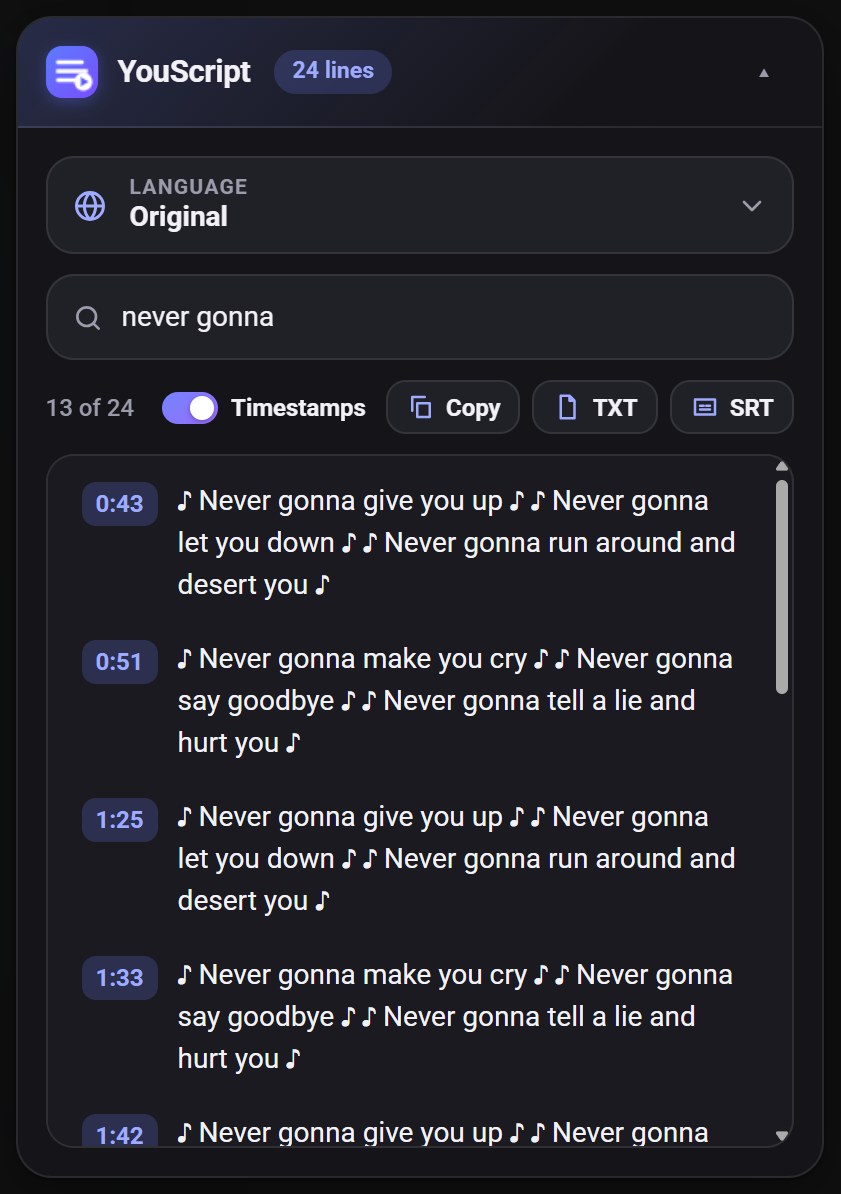
Type any word from the video and the list shrinks to just the lines that contain it, each with its timestamp. Click one and you are there. No more scrubbing through an hour of video.
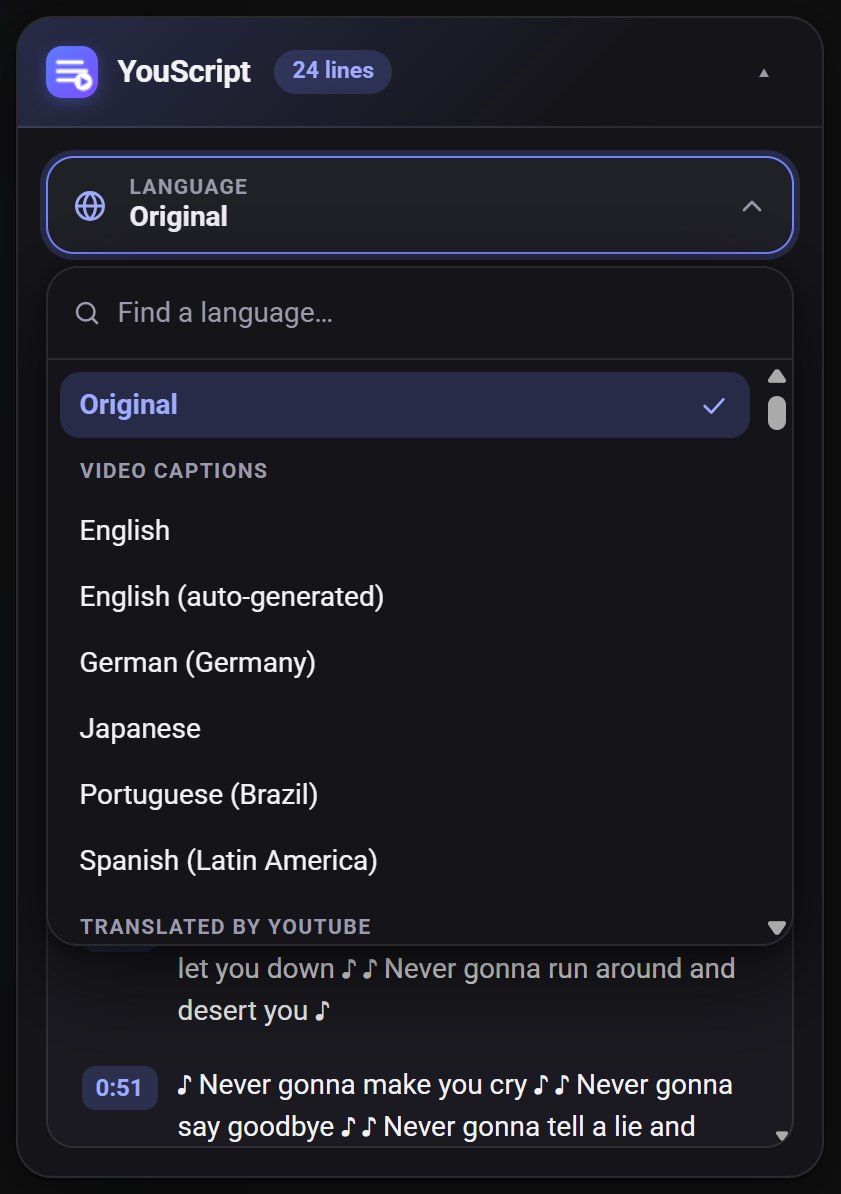
Open the Language menu and you will see the video’s own caption languages, plus every language YouTube can translate them into. Choose one and the transcript changes, timestamps and all.
Switch timestamps off for plain text you can paste straight into your notes. Or download an .srt subtitle file with proper start and end times for your video player or editor.
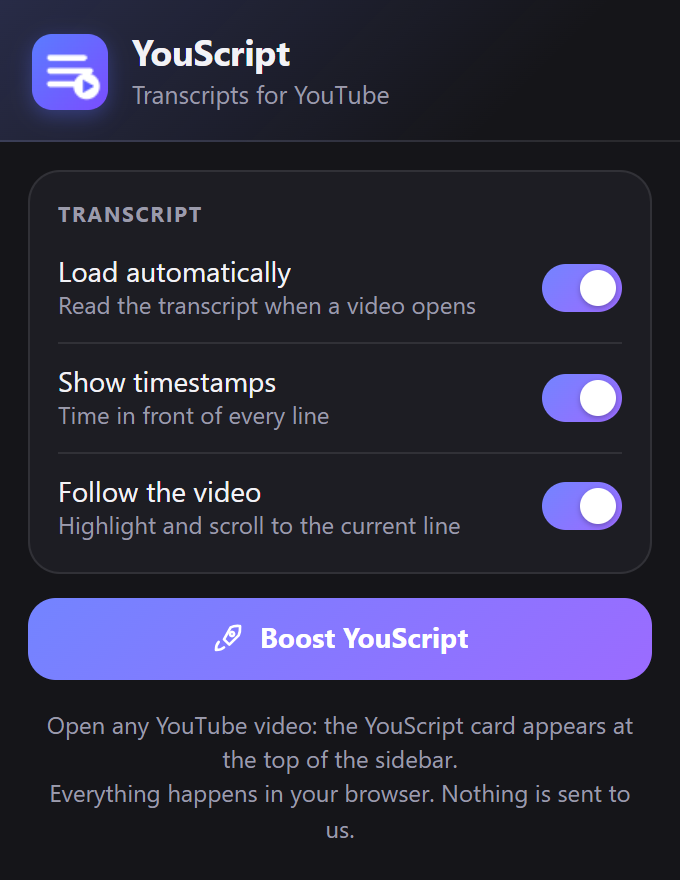
YouScript does one thing, so it has almost nothing to configure: load the transcript automatically, show timestamps, and follow the video while it plays. Turn each on or off from the toolbar icon.
YouScript does not use AI and has no server. The transcript is the one YouTube already has for the video, and other languages come from YouTube’s own translation. Nothing you watch is sent anywhere.
Install YouScript and open any YouTube video. The transcript appears in a card at the top of the sidebar, ready to read, search, copy or download. You do not need to click anything first.
Yes. There is no account, no sign-up, no subscription and no usage limit.
No. The transcript is the one YouTube already has for the video: captions written by the creator, or the automatic captions YouTube generates. Other languages come from YouTube’s own translation. YouScript does not send anything to an AI service.
No. It has no server of its own, no analytics and no tracking, and it loads no remote code. Your settings stay in your browser. The privacy policy lists exactly what is stored and why each permission is needed.
Use the Language menu at the top of the card. It lists the video’s own caption languages and, under “Translated by YouTube”, every language YouTube can translate them into. Choose one and the lines change, with the same timestamps. Choose “Original” to go back.
The menu only shows what YouTube offers. If a video has a single caption track and YouTube offers no translation for it, there is nothing to choose and the menu is hidden.
Some videos have no captions at all: the creator turned them off, the video is brand new and YouTube has not generated them yet, or there is no speech. YouScript can only show what YouTube has.
It is YouTube’s automatic translation, so it is as good as the translation you get from YouTube’s own subtitle menu: fine for understanding a video, not perfect for names, slang or songs.
.txt saves the transcript as plain text, with timestamps if you have them switched on. .srt saves it as a subtitle file with start and end times, which video players and editors can load. Both use the language you are viewing.
It adds the card to YouTube’s watch page and reads the transcript YouTube shows there, so it needs to run on youtube.com. It does not ask for access to any other website, your browsing history or your tabs.
YouScript is built for Google Chrome (version 111 or newer). Chromium browsers that can install Chrome Web Store extensions, such as Edge and Brave, generally run it too, though Chrome is the one it is tested on.
It’s free, and it will stay free. If it saved you some time, a small boost helps me keep improving it.
Add YouScript to Chrome and get the transcript of any YouTube video in a click.
Add to Chrome — it’s free